Table of Contents
1️⃣ Access You Step Settings
Set step goals
Connect domains
Page SEO
Duplicate steps
Copy entire steps to another funnel
And delete the funnel step
1️⃣ Access You Step Settings
To the right-hand side of each step is the settings icon [⚙️], click and the settings window will pop open 'as shown below'
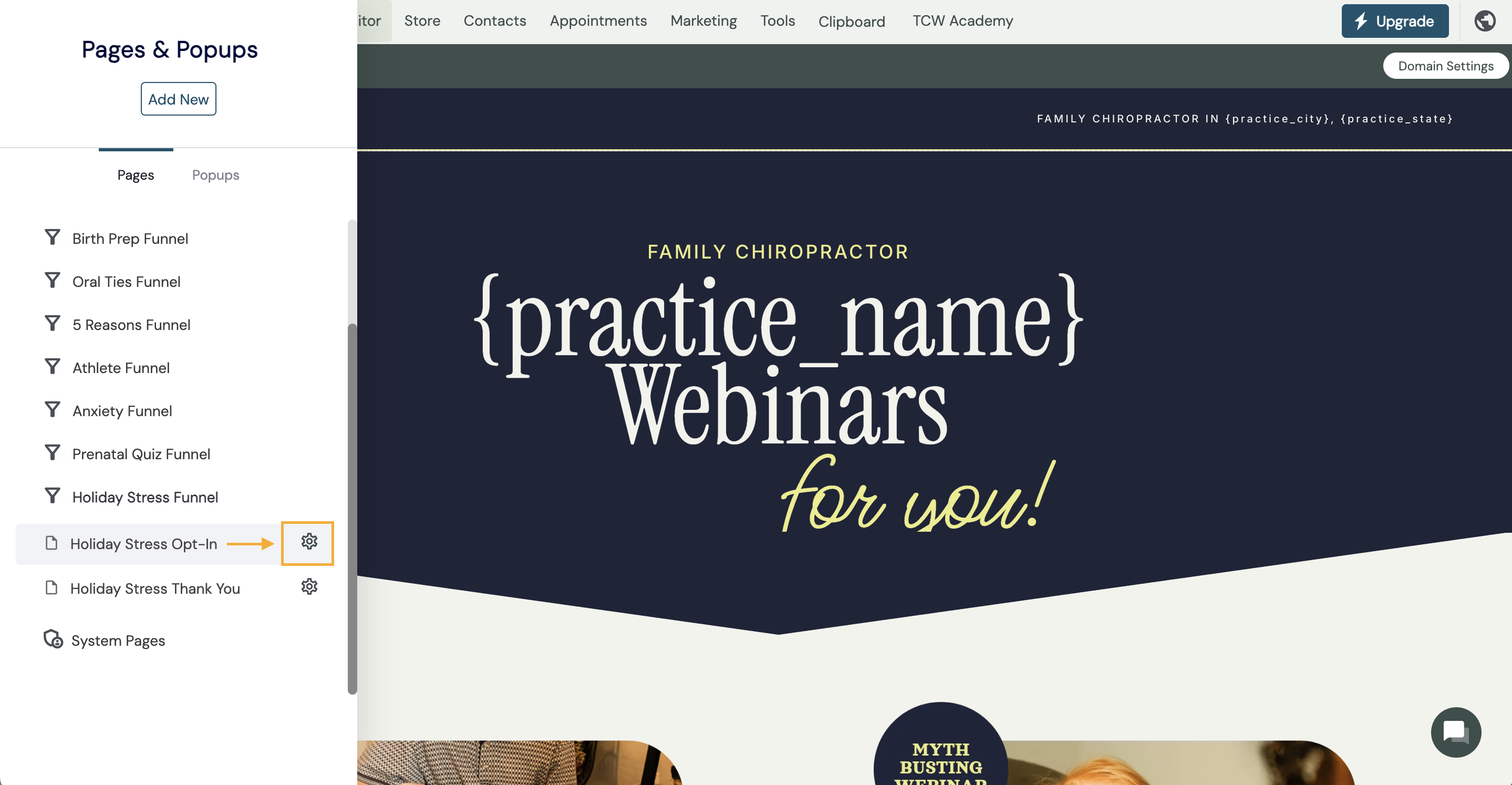
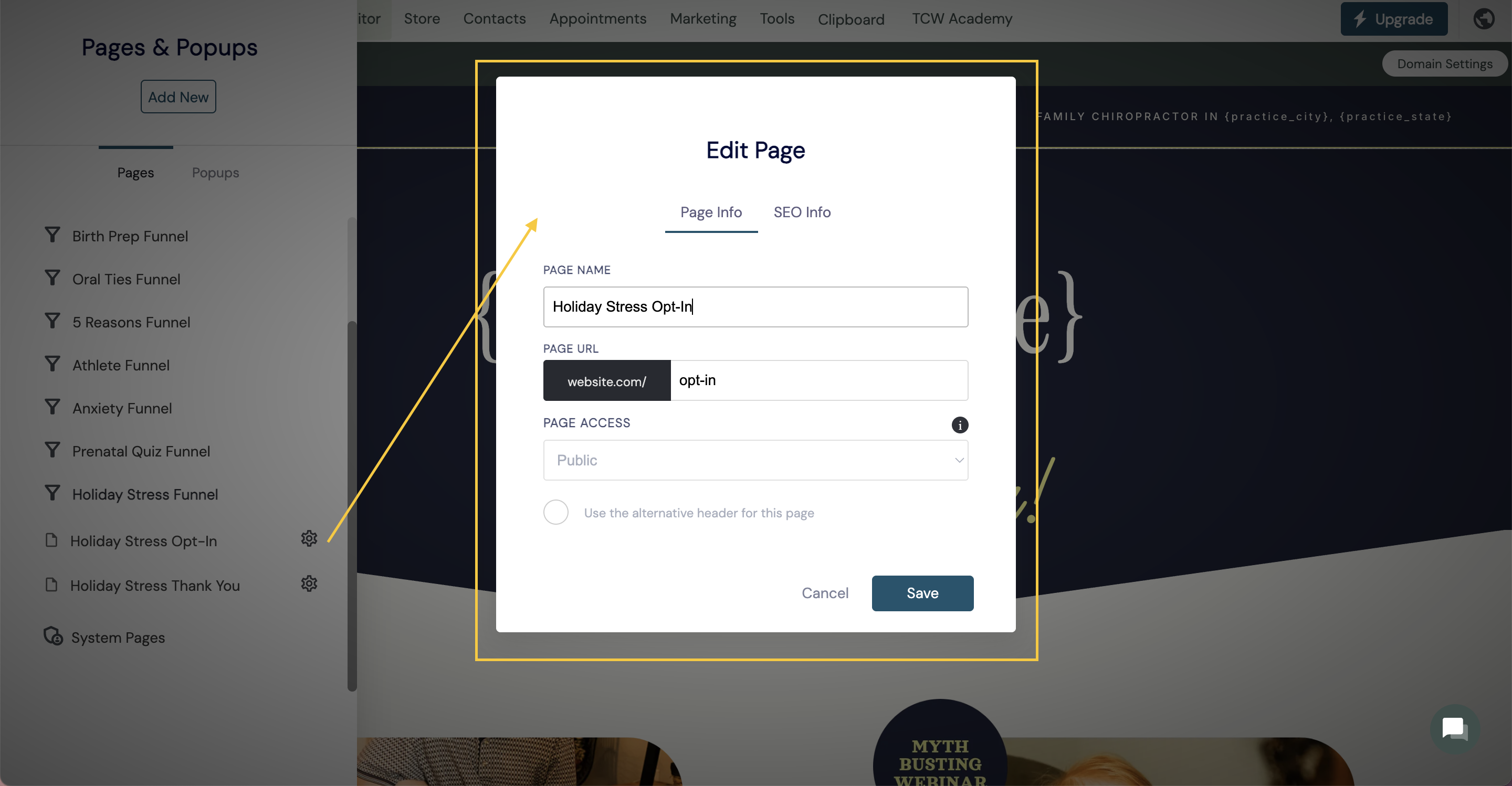
The step settings tab enables you to configure page access levels, page SEO and more.
Let's take a look at the page info setting:
- Page name: Label step for reference
- Page Url: Add a URL description that matches your funnel step.
- Page access - Enable public, password-protected, or even members-only access.
SEO
Optimise each funnel step! Here you can add SEO 'Search engine optimisation to each funnel step. When the amber coloured line shows green, your SEO is optimised for length.
- Add to sitemap - When the sitemap is on - this basically means that your page or funnel step is searchable on Google. You can turn this off if you wish.
Set as goal
Setting goals within your funnel will enable you to visualise inside the analytics dashboard the funnel goals you are hitting. Goals are best added to the end of funnel steps. For example:
- Thank you pages
- Registration completion
PENDIENTE IMAGEN
Duplicate
If you need to create another funnel step, but want to simply duplicate an existing step. Then the duplicate tab is for you.
Copy to another funnel
Created an amazing step that you want to use in another funnel? Awesome, select the copy to another funnel tab and it will ask you which funnel would you like to add it to.
Delete
This deletes only the selected funnel step. Note: Once deleted it cannot be undone.