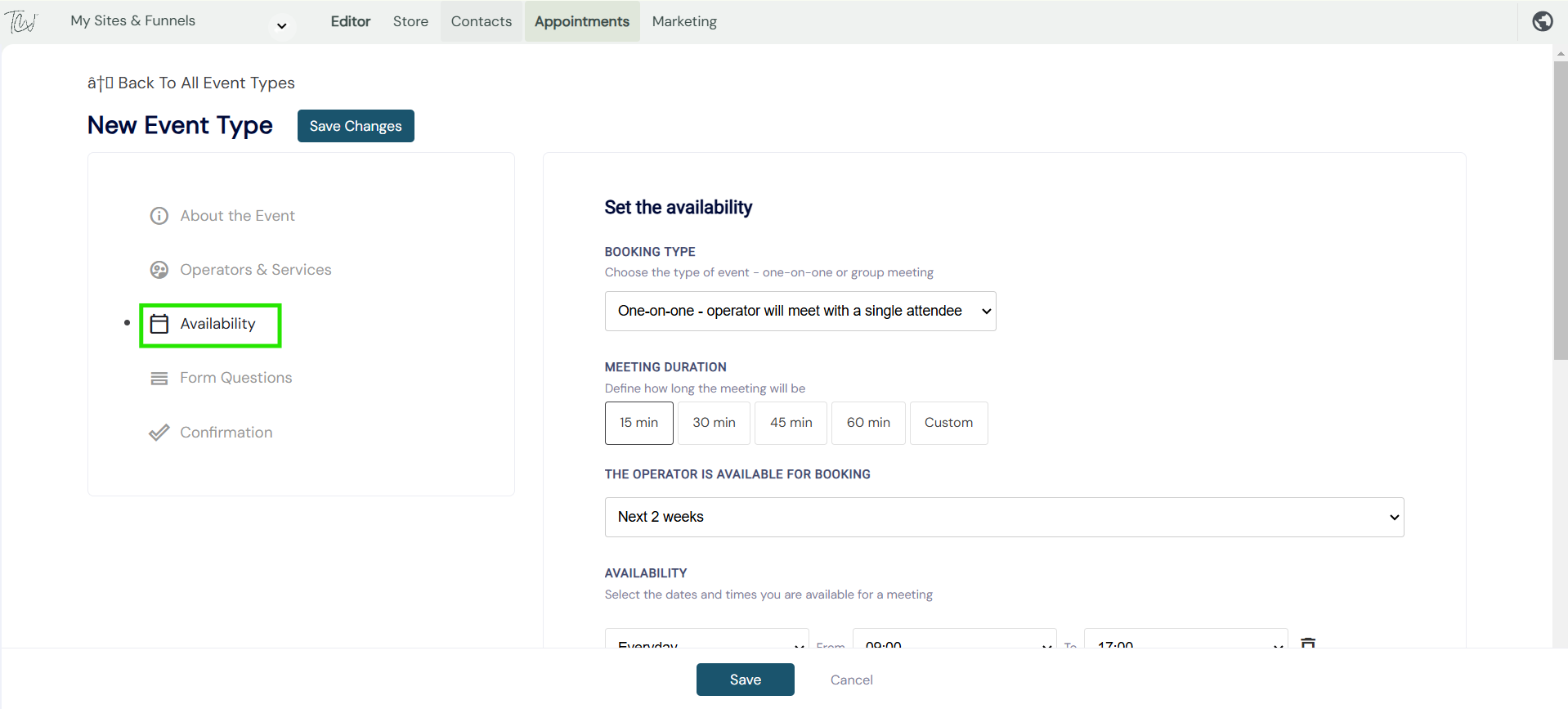
How to create your booking event, allocate services and operators to that event?
Create the event
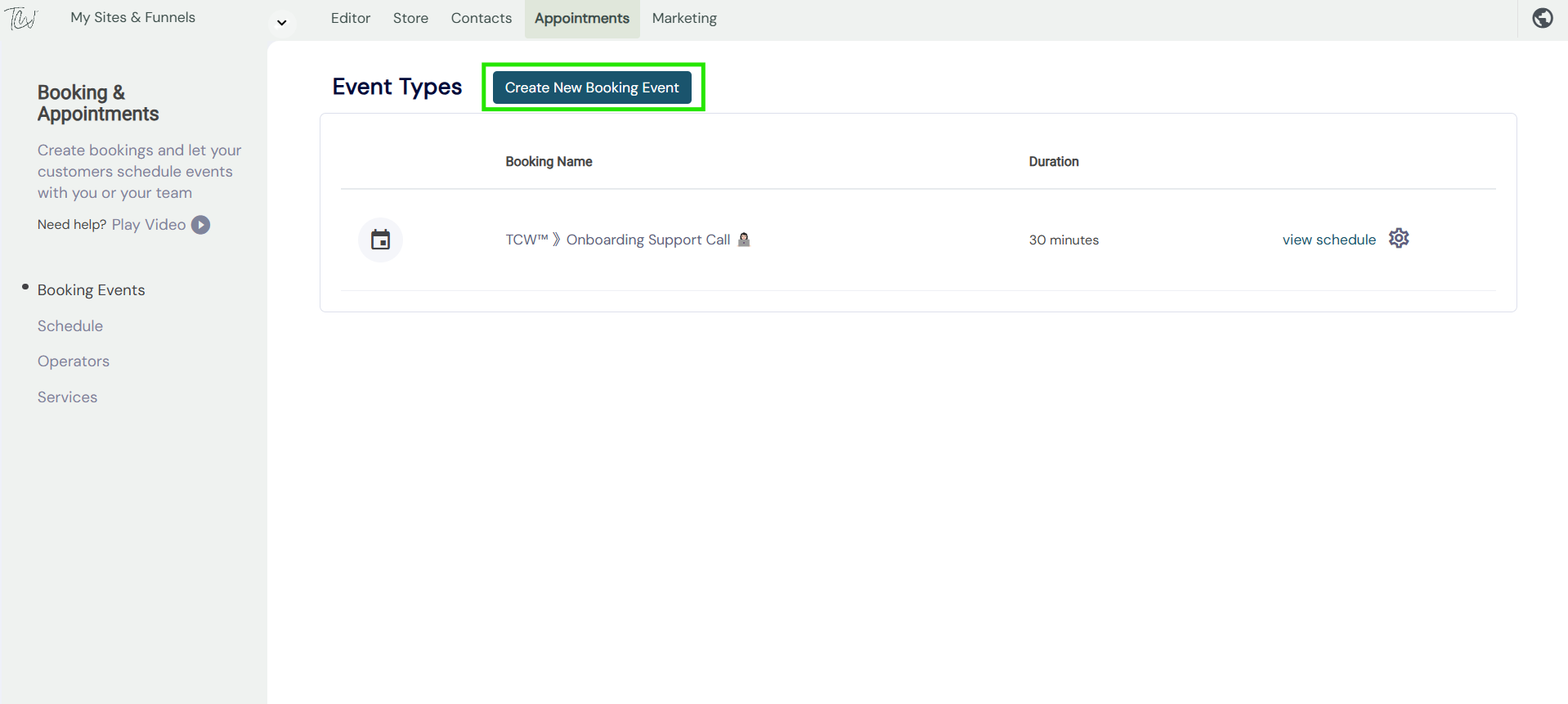
- To get started head over to the Appointments tab at the top of the dashboard.
- Select Create a new booking event as shown below.
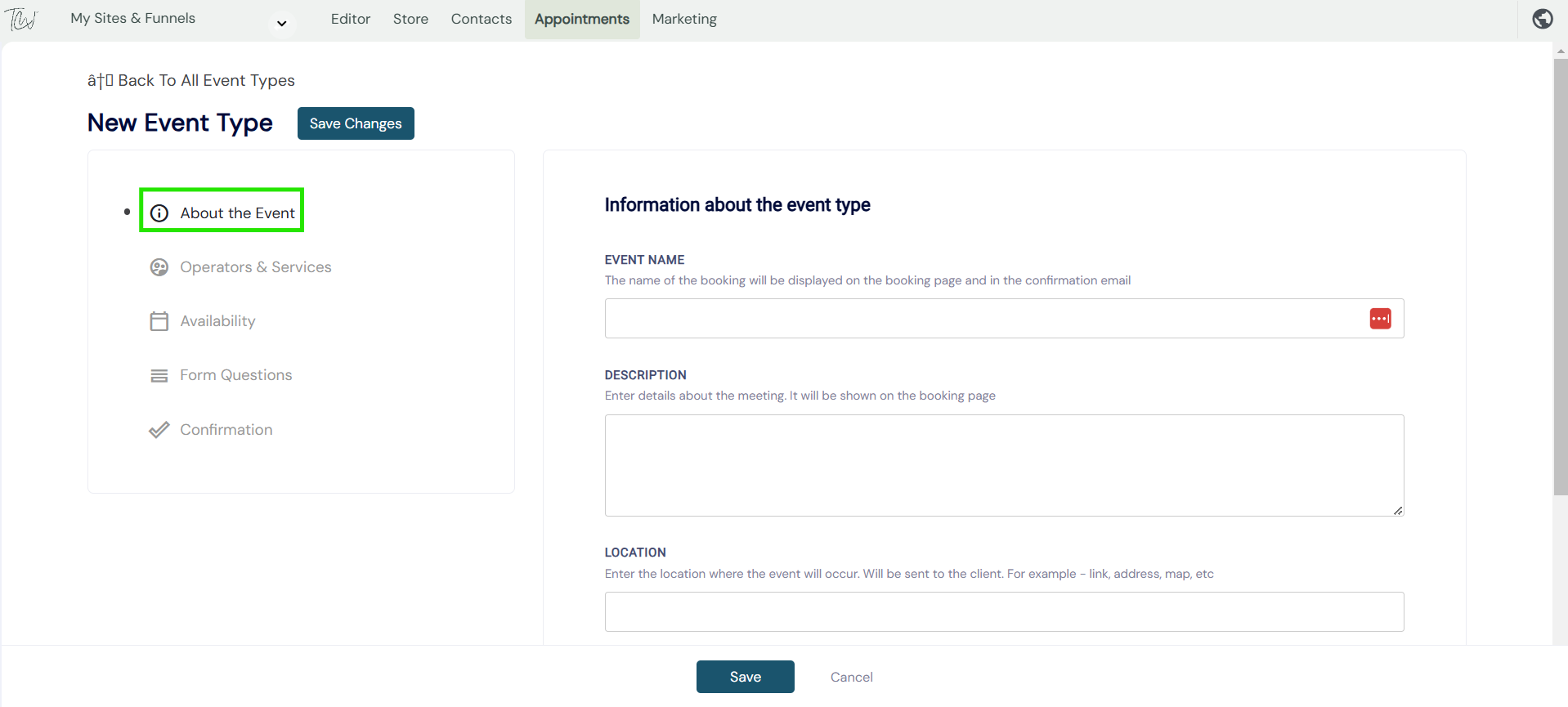
About the booking
Now name the event, fill in the required sections as shown below.
- Event name
- Event description
- Event location
- Send email to the user
Adding an operator
An operator is a person who will be conducting the meeting/event. Note: you can add multiple operators if required.
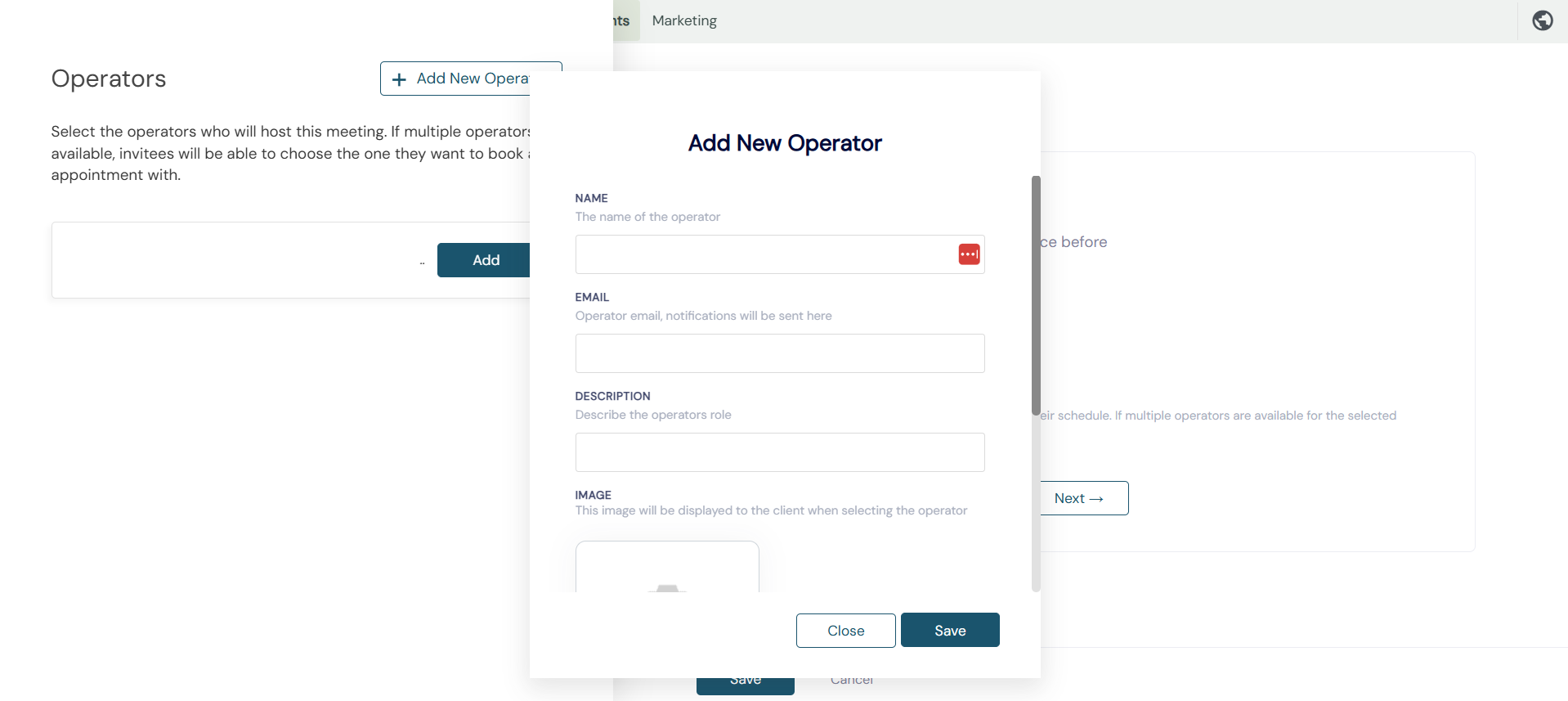
- Select the add an operator button.
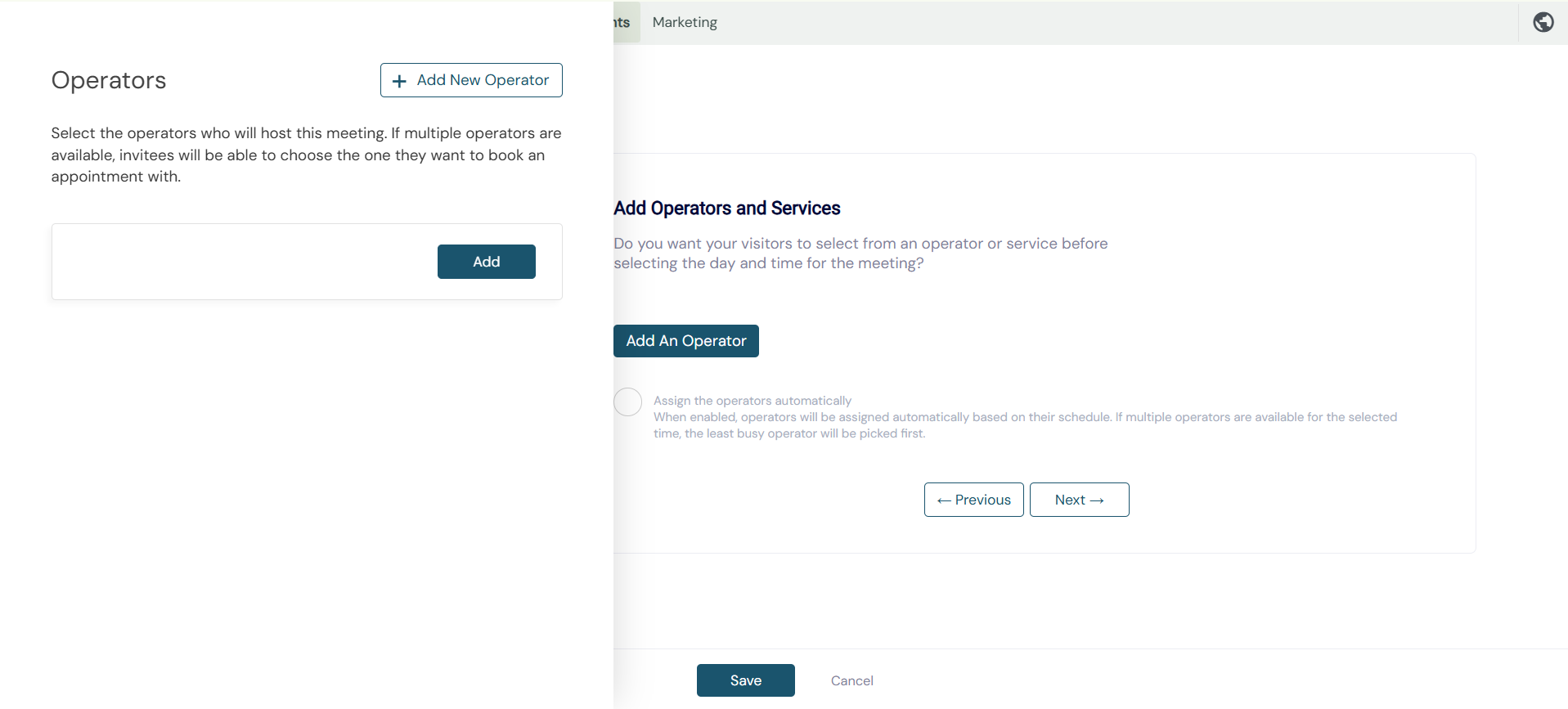
- Now enter the operator's details in the box.
- Add the Google account dedicated to that operator to automatically add to their calendar.
Create a service
Now that you have created your operator, select the 'Link services' button to create your service.
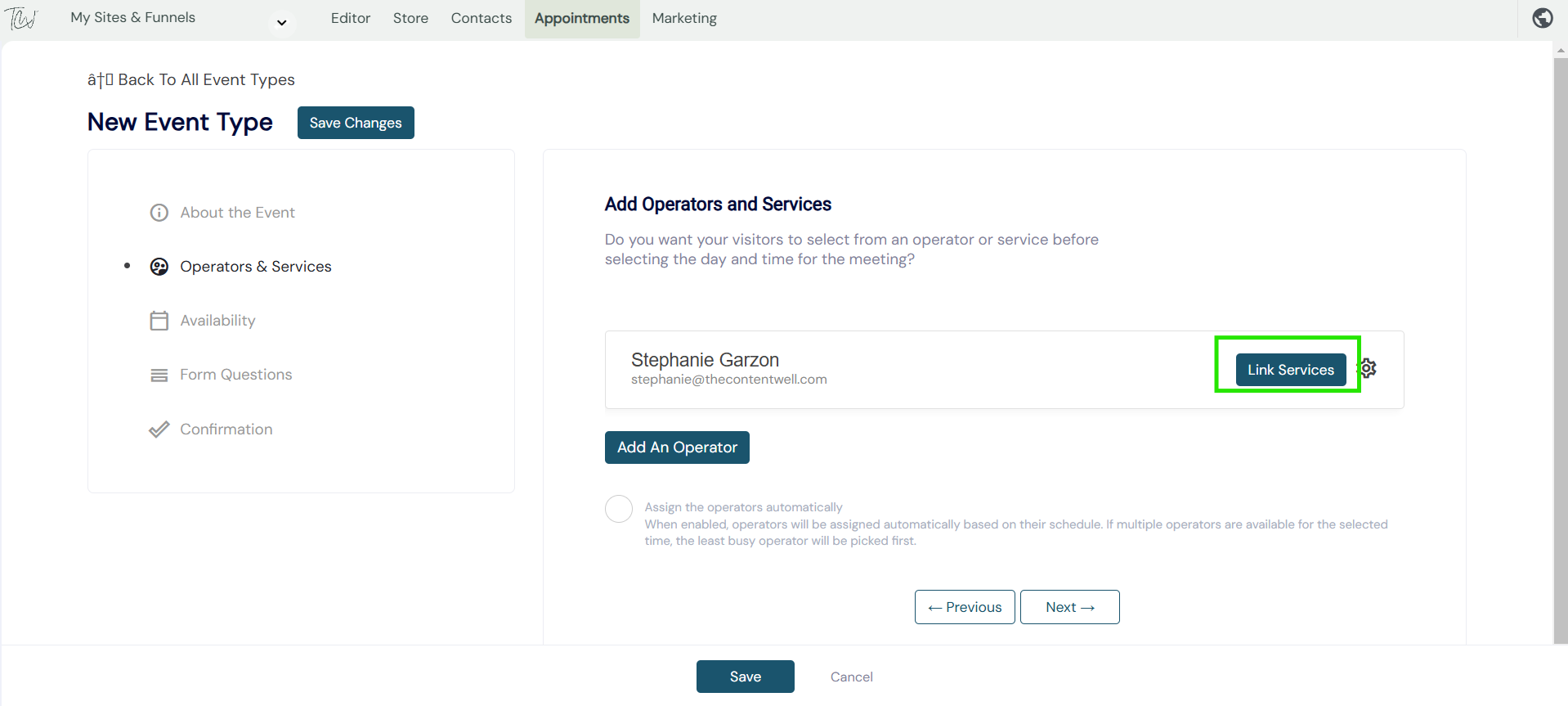
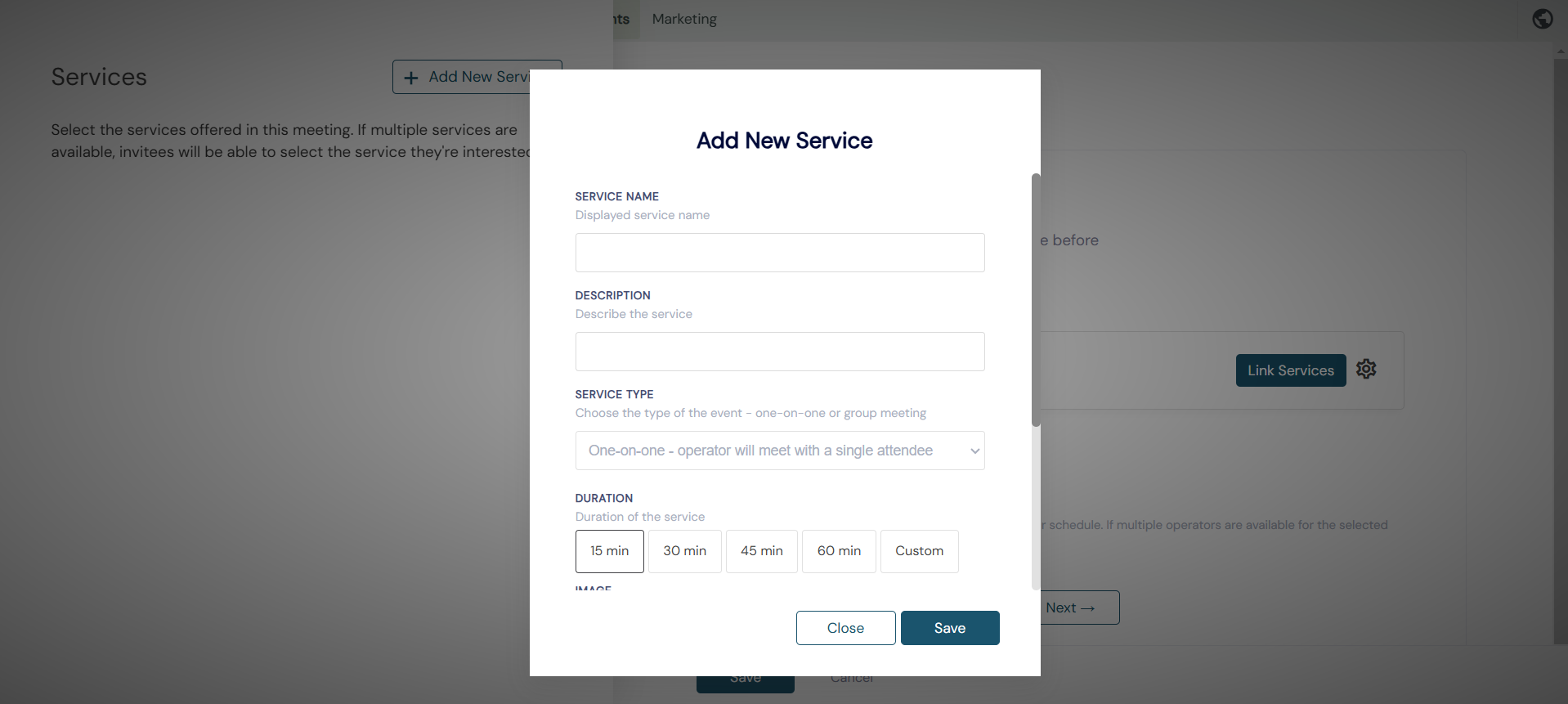
- Add new service.
- Fill out the required fields in the 'add new service popup'.
Allocate services to an operator
Now that your operator and service/s have been created add that service to the respective operator/s.
PENDIENTE IMAGEN
Availability
The next step is creating the operators' availability.
Select the booking type, whether it will be one to one or a group booking event for multiple users.
Then configure:
- Meeting duration
- Operator availability
- Availability Increments
- Scheduling notice
- Meeting buffer time
To learn more about adding your booking event to your website pages.